You can make multiple views on the same track and save them by name. The view(s) will be visible through a shadowed grey background colour.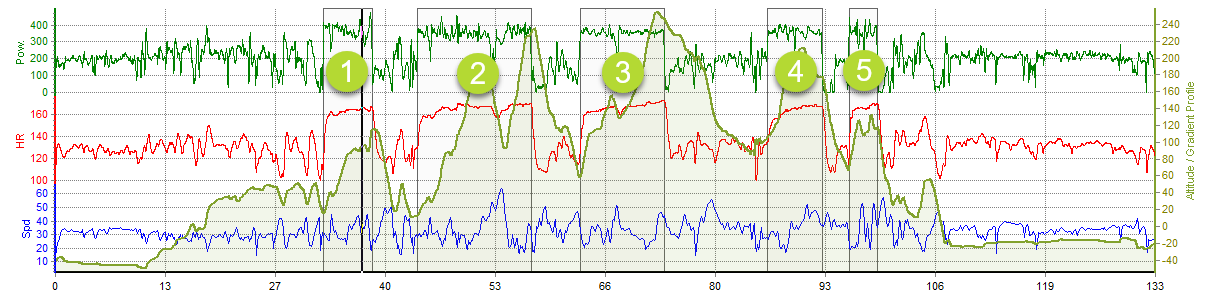
Select a view
A Select a view on the graph
One click in the view: The view is visible through a shadowed green background colour.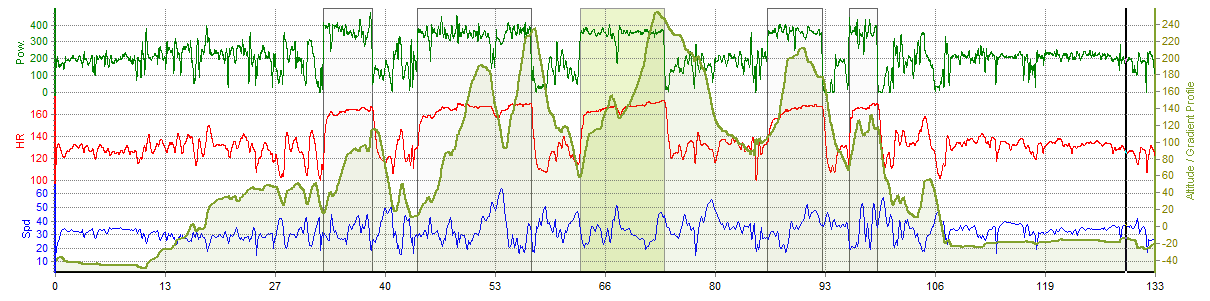
Double-click in the view: The details of a view are displayed in the graph.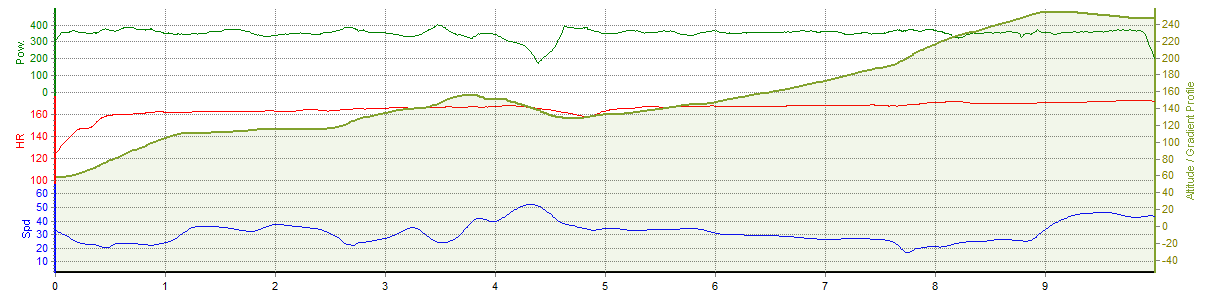
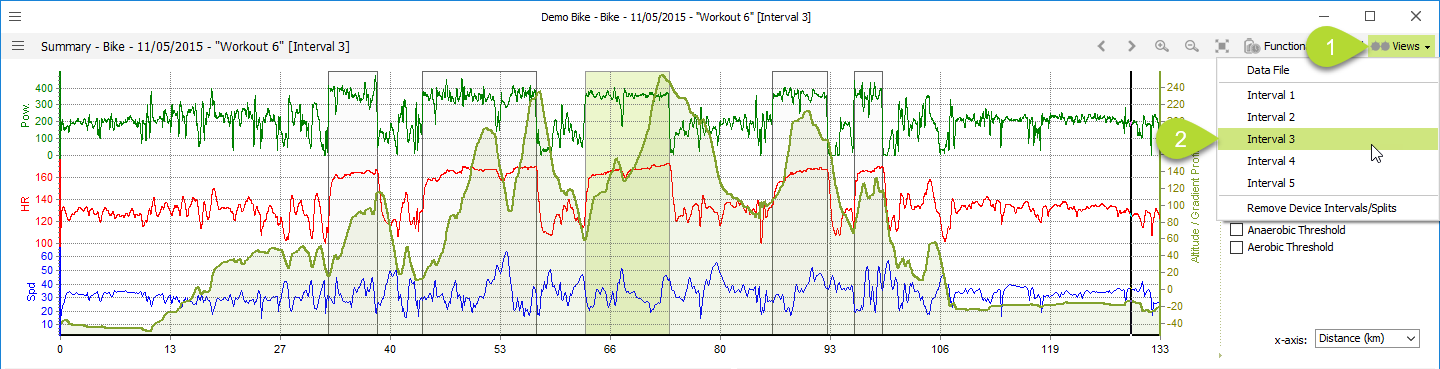
B Select a view with the toolbar
You can also select a view by clicking View  > Select the appropriate view out of the submenu.
C The views are marked on the map

The route is colour-coded: the full track is red, the created views are blue and the selected view is yellow.
D Summary table
When a view is selected; the table contains the summary data of the view.
Compare views
E Views Summary Table
Click on Views Summary Table in the left navigator to compare the different views to each other.
Comments